Showing posts with label Bloggers Help. Show all posts

Saturday, March 21, 2009

Mobile Blogging

I wasn't aware that you can do blogging on your mobile too until I came across blogger's help section. Yes you can do blogging in your mobile, how does it work here's the details.


You send a message - which can be a photo, some text, or both - to go@blogger.com. We take care of the rest. In other words, we auto-provision a new blog and publish the post. It's that simple.

Here's how to start a mobile blog:

  1. 1. Send an MMS to go@blogger.com to create your mobile blog. The text and/or photo in your MMS will be uploaded to that blog right away. We'll message you back with the address, (so you can visit your new blog on the web) and a token (so you can claim your blog and access it from your account).
  2. 2. OPTIONAL - If you feel like changing anything on your new mobile blog or if you already have a Blogger account and want the posts to go to your existing blog, you can log in to go.blogger.com and enter the token we sent to your phone. You'll then have the option to claim your new mobile blog and merge it with your existing blog. Note to users whose blog address does not contain blogspot.com: Once you make the aforementioned switch, new mobile posts will be published to your chosen blog but mobile posts published prior to the switch will not be moved over automatically.

What types of messages can I send to Blogger Mobile from my phone?

MMS or Email - note this doesn't include email sent from a mobile device that actually passes through a webmail gateway (such as mail sent from your stanford.edu account from your phone).

What size photos can I send?

Photos are currently limited to 250K each. If they exceed that size, you'll receive a bounce message letting you know so you can try again with a smaller picture. Note that your phone (or carrier) might have size limits of its own.

Is there a cost for using Blogger Mobile?

Mobile providers' standard rates for sending and receiving text and photo messages apply. Blogger won't charge you for any of its services.

Requirements

Text messaging-enabled mobile device with a text messaging plan. This service is free from Google but charges from your carrier for usage may apply.

Thursday, March 19, 2009

Follow others blog is very easy

If you like somebody's blog, you tend to visit it everyday. To make it more easier, you'll end up joining his or her community. I know everyone know how to do this already. It is a very easy step to do but it doesn't hurt if we'll review it once again. Bloggers getting started guide has been very helpful and will give you a step by step procedure to give your blog a more productive content.

Follow other blogs

With the Blogger Following feature you can keep track of the blogs you follow via your Reading List on the Blogger dashboard. There are several ways to become a follower of a blog. One of the easiest ways is to visit a blog that has added the 'Following' widget, ad then follow these steps:

  1. Click the FOLLOW THIS BLOG link under the 'Followers' widget.

    following blogs

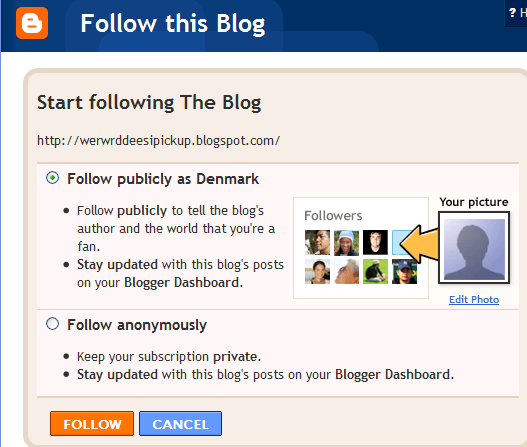
  2. You'll then see a pop-up window with the options to either follow publicly or anonymously.

    settings for following blogs


  3. Select how you'd like to follow the blog, then click the orange FOLLOW button. You're now a follower of the blog! If you chose to follow the blog publicly, your profile picture will be displayed on the blog with a link to your Blogger profile.
  4. When you become a follower of a blog, the blog will also be added to your Reading List on your Blogger dashboard. Additionally, you can become a follower of any blog or URL (even if the blog doesn't have the 'Followers' widget) by adding the blog to your Reading List on the dashboard.

Wednesday, March 18, 2009

How do I control who can view my blog

Can I control the viewers of blog? The answer is yes but I guess everyone wants their blog to be viewed by anybody else. but just in case you want to control the viewers of your blog, here's what your going to do.

By default, your blog is completely public, and can be read by anyone on the internet. However, if you want to keep it private, you can do that, too. The setting for this is on the Settings | Permissions tab.

Under the Blog Readers heading, you'll probably see "Anybody" selected as the default. When you change this to "Only readers I choose," you'll get an Add Readers button.

Click the Add Readers button and then enter the email address of a person to whom you want to grant access to your blog. To add multiple people, separate their addresses with commas.

For each address entered, the Google Account associated with that address will be given access to view your blog. If an address is not associated with an account, that person will be sent an invitation email with a link allowing them do one of three things:

  • Sign in to an existing account.
  • Create a new account.
  • View your blog as a guest (no account required).

In the first two cases, the reader will be given permission to view your blog whenever they are logged in to their Google Account. As a guest, they'll be able to continue viewing your blog through the link in the invitation email, but this will expire after two weeks. After that, they'll need a new invitation.

If you want to revoke someone's access to your blog, simply click the remove link next to his or her name in the Blog Readers list. You can also toggle back to the "Anybody" option any time you decide to make the blog completely public again.

Note: If you publish your blog via FTP to your own server, the Blog Readers option will not be available. This is because Blogger has no control over who can access web pages on your server. However, you can contact your hosting provider to find out about any support they may offer for restricting access to your site.